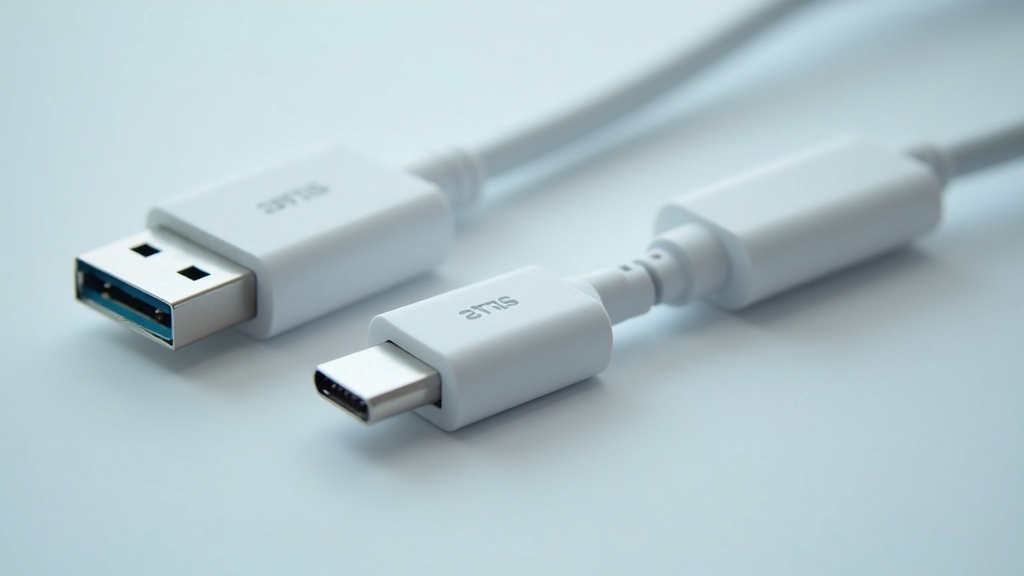
Learn how to use USB cables and adapters, including connector types, safe usage, and practical tips for connecting devices without damaging your hardware.
Table of Contents
- Understanding USB Connector Types
- Using USB Adapters and Converters
- Safe Connection and Data Transfer
- Troubleshooting Common USB Issues
- Frequently Asked Questions
- Comparison: USB Cable Types
- Practical Tips for USB Users
Quick Stats: How to Use USB Cables and Adapters
- USB-A ports deliver 5 volts for power, suitable for basic charging and low-power devices (USB Charging and Cables Explained – YouTube, 2026)[1].
- USB-C connections support 3 primary modes: charging, file transfer, and PC connection (How To Use Type-C To Type-C Cable With Your Smartphone – YouTube, 2026)[2].
- USB male-to-female adapters serve 2 primary purposes: extending cable length and repositioning ports (VCOM Hong Kong – Consumer Electronics FAQs, 2026)[3].
Introduction
Knowing how to use USB cables and adapters properly can save you from damaged ports, corrupted files, and frustrating connection failures. With the shift from USB-A to USB-C and the proliferation of adapters, many users find themselves unsure which cable fits where. This guide covers the essential connector types, the role of adapters, safe connection practices, and troubleshooting tips. Whether you are connecting a printer to a laptop or charging a smartphone, understanding these fundamentals will help you make the right choice every time.
Understanding USB Connector Types
USB connectors fall into two broad categories: the older rectangular USB-A and the newer oval USB-C. Each serves specific purposes and requires different handling.
USB-A: The Universal Standard
USB-A is the classic rectangular port found on computers, chargers, and many peripherals. It delivers a standardized 5 volts for power, making it suitable for basic charging and low-power devices (USB Charging and Cables Explained – YouTube, 2026)[1]. When plugging in a USB-A cable, orientation matters. As technology educator Aaron explains, “If you look at any USB cable at the end of it, they’ve all got that USB symbol on one side. The key to remembering which side is up is to remember: USB up, blank to the bottom” (Aaron, 2026)[4]. This simple trick prevents forcing the connector the wrong way and damaging the port.
USB-C: The Reversible Powerhouse
USB-C is a smaller, reversible connector that supports multiple functions. A Type-C to Type-C cable can be used for three core functions with smartphones: charging another device, transferring media files, and charging from a mains charger (How To Use Type-C To Type-C Cable With Your Smartphone – YouTube, 2026)[2]. This versatility makes USB-C the preferred choice for modern laptops, tablets, and smartphones. However, not all USB-C cables support the same data speeds or power delivery levels, so checking the cable specification before use is important.
Using USB Adapters and Converters
Adapters bridge the gap between different USB connector types, allowing older devices to work with newer cables and vice versa. Technology writer Savita Thakur notes that “USB adapter ports allow you to convert one type of USB connection into another and safely connect devices that otherwise wouldn’t be compatible” (Savita Thakur, 2026)[5].
USB-C to USB-A Adapters
These small adapters let you plug a USB-C cable into a USB-A port. According to the MAGFAST Technical Team, “USB-C to USB-A adaptors allow a cable with a USB-C connection to be attached, making it fully compatible with a USB-A device while still delivering a consistent charge” (MAGFAST Technical Team, 2026)[6]. This is especially useful when you have a new USB-C cable but need to charge an older device or connect to a computer with only USB-A ports.
USB Male-to-Female Adapters
A USB male-to-female adapter is primarily used to extend the length of an existing USB cable or reposition a USB port to a more accessible location (VCOM Product Team, 2026)[3]. These adapters are handy for reaching a USB port behind a desk or extending a cable that is too short to reach your device comfortably.
Safe Connection and Data Transfer
Connecting a USB device correctly prevents data loss and hardware damage. Standard guidance for connecting a USB device to a computer includes three main steps: power the device if needed, plug the Type-B connector into the device, and plug the other end into an open USB port (University of Wisconsin–Eau Claire, Chemistry Department Help Pages, 2026)[7].
Data Transfer with USB-to-USB Cables
USB-to-USB cables can be used to transfer data between two devices, but you must choose the right type of cable and follow the proper usage instructions to avoid connection or power issues (MiniTool Editorial Team, 2026)[8]. Using a standard charging cable instead of a data cable will not transfer files, so always check the cable’s labeling.
Avoiding Data Corruption
When connecting USB storage devices to a computer, unplugging the device while it is in use can corrupt or damage files on that device (University of Wisconsin–Eau Claire, Chemistry Department Help Pages, 2026)[7]. Always use the “Safely Remove Hardware” feature before disconnecting a USB drive to ensure all write operations are complete.
Troubleshooting Common USB Issues
Even with proper knowledge, USB connections can sometimes fail. Common problems include loose connections, incompatible standards, and driver issues.
Device Not Recognized
If your computer does not detect a USB device, try plugging it into a different port. USB ports can wear out over time, and a loose connection may prevent data transfer. Restarting the computer also resets the USB controller and often resolves recognition issues.
Slow Charging or Transfer Speeds
Using a cable that does not support the required power delivery or data speed can result in slow performance. For example, a USB-C cable rated only for charging may not transfer files at all. Always match the cable to the device’s specifications. For reliable performance, consider using HDMI cables for laptops from a trusted connectivity provider if you need video output alongside USB data.
Important Questions About How to Use USB Cables and Adapters
What is the easiest way to remember which side of a USB-A plug is up?
The USB symbol on the plug indicates which side should face up. As technology educator Aaron explains, “The key to remembering which side is up is to remember: USB up, blank to the bottom” (Aaron, 2026)[4]. This simple mnemonic prevents you from forcing the plug in the wrong direction and damaging the port.
Can I use a USB-C to USB-A adapter for charging?
Yes. USB-C to USB-A adaptors allow a USB-C cable to connect to a USB-A device while delivering a consistent charge (MAGFAST Technical Team, 2026)[6]. However, charging speed may be limited by the USB-A port’s power output, which is typically 5 volts.
How do I safely disconnect a USB storage device?
Always use the “Safely Remove Hardware” option in your operating system before unplugging a USB drive. Unplugging the device while it is in use can corrupt or damage files on that device (University of Wisconsin–Eau Claire, 2026)[7]. Wait for the system to confirm it is safe to remove the hardware.
What is a USB male-to-female adapter used for?
A USB male-to-female adapter is primarily used to extend the length of an existing USB cable or reposition a USB port to a more accessible location (VCOM Product Team, 2026)[3]. It is a simple tool for improving cable reach without replacing the entire cable.
Comparison: USB Cable Types
Choosing the right USB cable depends on your device’s port type and your intended use. The table below compares the most common USB cable types based on connector shape, primary functions, and typical applications.
| Connector Type | Shape | Primary Functions | Common Uses |
|---|---|---|---|
| USB-A | Rectangular, non-reversible | Charging (5V), data transfer | Connecting keyboards, mice, flash drives |
| USB-C | Oval, reversible | Charging, file transfer, PC connection | Modern laptops, smartphones, tablets |
| USB-B | Square with beveled corners | Data transfer, printer connection | Printers, scanners, external hard drives |
| USB Micro-B | Small, trapezoidal | Charging, data transfer | Older smartphones, external batteries |
Practical Tips for USB Users
Follow these actionable tips to get the most out of your USB cables and adapters while avoiding common pitfalls.
- Check cable specifications before purchase. Not all USB-C cables support the same power delivery or data transfer speeds. Look for cables that match your device’s requirements, especially for fast charging or high-speed file transfers.
- Use adapters sparingly. While adapters are convenient, daisy-chaining multiple adapters can introduce signal loss or power drop. Whenever possible, use a direct cable connection for critical data transfers.
- Label your cables. With multiple USB cables in your drawer, labeling each one with its purpose (e.g., “charging only,” “data + charge”) saves time and prevents using the wrong cable.
- Inspect ports regularly. Dust and debris can accumulate inside USB ports, causing poor connections. Use compressed air to clean ports gently, and avoid inserting plugs at an angle.
For more about How to train your dragon, see learn more about how to train your dragon.
Key Takeaways
Mastering how to use USB cables and adapters involves understanding connector types, using adapters correctly, and following safe connection practices. By remembering the USB symbol orientation for USB-A, leveraging USB-C’s versatility, and using adapters only when necessary, you can extend the life of your devices and avoid data loss. For a deeper dive into connectivity solutions, explore our clinical applications of laughter therapy article on the benefits of humor in healthcare.
Useful Resources
- USB Charging and Cables Explained – YouTube.
https://www.youtube.com/watch?v=jD54dscsefw - How To Use Type-C To Type-C Cable With Your Smartphone – YouTube.
https://www.youtube.com/watch?v=YNXAIJXy_zI - What is USB Male to Female? – VCOM Hong Kong.
https://www.vcom.com.hk/shows/61/431.html - Plug in a USB cord the right way the first time – YouTube.
https://www.youtube.com/watch?v=twPVPws2vnU - How to Connect Devices Using USB Adapter Ports – LinkedIn Pulse.
https://www.linkedin.com/pulse/how-connect-devices-using-usb-adapter-ports-savita-thakur-hwonc - Keeping up with cables and connection types – MAGFAST.
https://www.magfast.com/discover/keeping-up-with-cables-and-connection-types/ - University of Wisconsin–Eau Claire, Chemistry Department Help Pages.
https://www.chem.uwec.edu/chem101/System%209Folder/Help/Mac%20Help/eq/pgs/eqUsbCnt.htm - Types of the USB to USB Cables and the Usage of Them – MiniTool Software.
https://www.minitool.com/lib/usb-to-usb.html